前言
今天来实现一下拖拽排序功能。对于鸿蒙中的控件来说,我们可以通过将draggable属性设置为true,并在onDragStart等接口中实现数据传输相关内容来实现拖拽能力,但对于 List 和 Grid 来讲,有几个特殊的用法。
List 的拖拽排序
准确来讲,应该是List + ForEach/LazyForEach/Repeat 生成的ListItem组件才会生效。
我们可以通过ForEach/LazyForEach/Repeat的onMove回调来完成拖拽排序
1
2
3
4
5
6
7
8
9
10
11
12
13
14
15
16
17
| List({ space: 20 }) {
ForEach(this.numberData, (item: string) => {
ListItem(){
Text(`${item}`)
.width('100%')
.height(80)
.textAlign(TextAlign.Center)
.backgroundColor(Color.White)
.fontColor(Color.Black)
} .borderRadius(8)
}, (item: number) => item.toString())
.onMove((from: number, to: number) => {
let tmp = this.numberData.splice(from, 1);
this.numberData.splice(to, 0, tmp[0]);
})
}.width('100%').height(500)
|
这里需要注意下在onMove会调用中处理一下数据,让数据和实际展示内容一致。
看下效果:
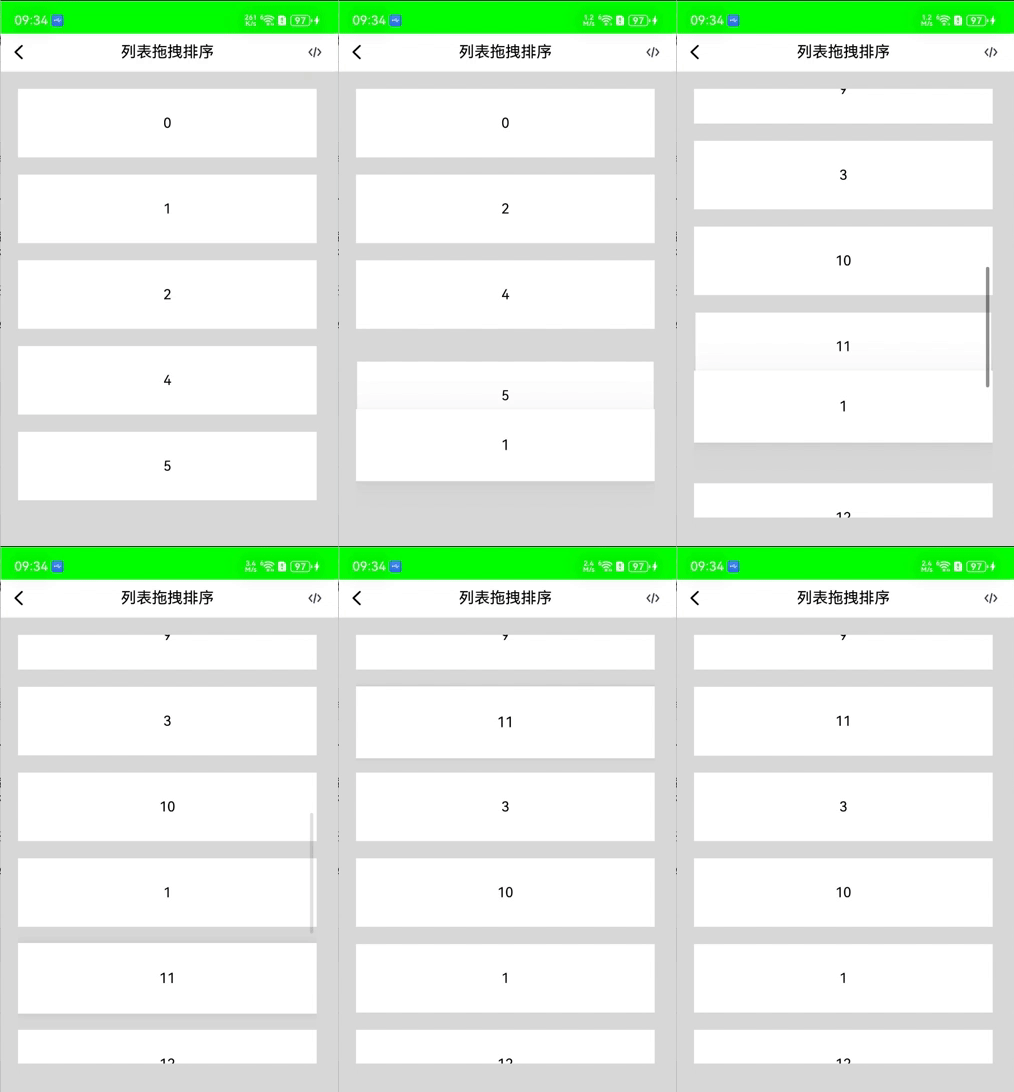
可以看到,能实现基本的拖拽排序,也可以触发滑动,但无法拖拽出 List 组件的范围。
Grid
由于onMove只能在父组件是List的情况下有效果,在Grid组件中,我们可以使用onItemDragStart和onItemDrop回调来实现相同的效果。
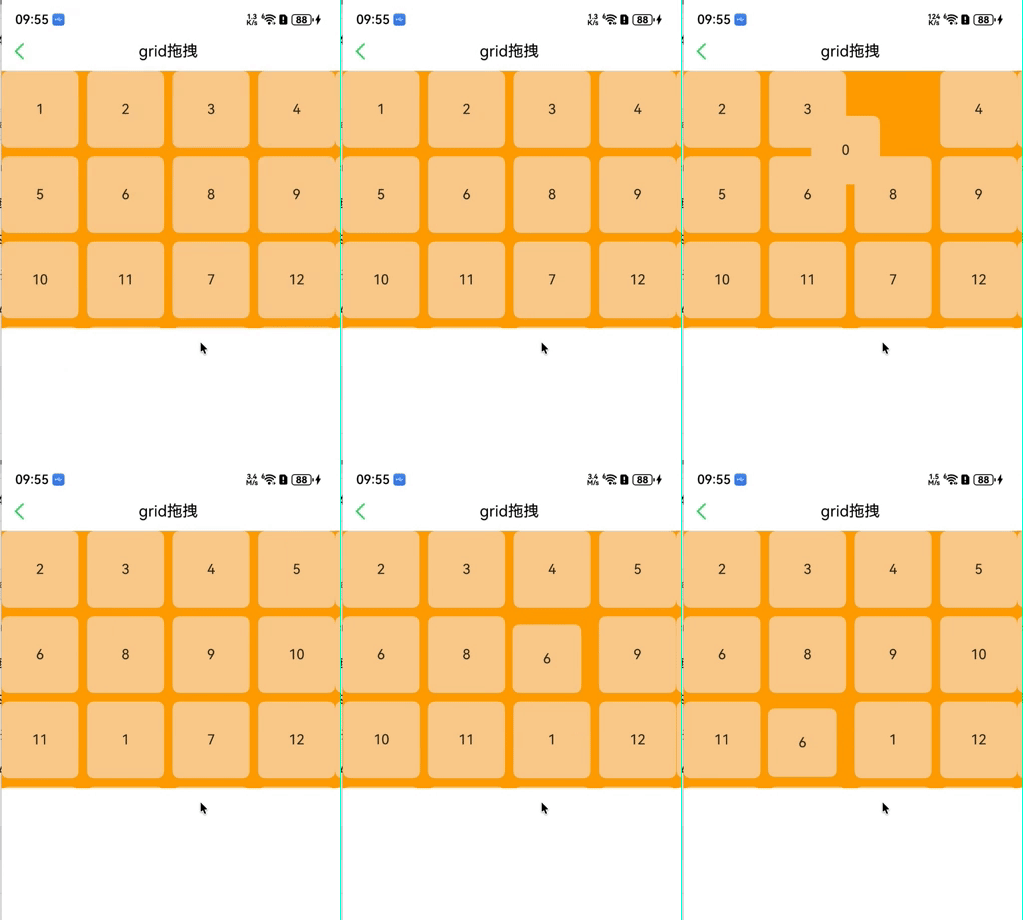
相比于onMove回调,onItemDragStart和onItemDrop回调给了更多的参数,我们可以做更多的效果,并且还可以将GridItem拖拽到Grid组件的范围之外。缺点就是无法自动触发Grid的滑动。
先看下怎么做拖拽排序:
- Grid 设置editMode属性为 true,这样可以拖拽Grid组件内部GridItem。
- Grid 设置supportAnimation属性为 true,这样在拖拽的时候会有动画效果,不会太生硬。
- 重写
onItemDragStart回调,该方法在开始拖拽网格元素时触发。返回void表示不能拖拽。但是需要注意:由于拖拽检测也需要长按,且事件处理机制优先触发子组件事件,GridItem上绑定LongPressGesture时无法触发拖拽。如有长按和拖拽同时使用的需求可以使用通用拖拽事件。
- 重写
onItemDrop,处理数据。注意:不重写该方法时无法触发拖拽动效。
ForEach、LazyForEach、Repeat都可以使用
下面看下使用ForEach代码实现:
1
2
3
4
5
6
7
8
9
10
11
12
13
14
15
16
17
18
19
20
21
22
23
24
25
26
27
28
29
30
31
32
33
34
35
36
37
38
39
40
41
42
43
44
45
46
47
48
49
| @Builder
pixelMapBuilder(text:string) {
Column() {
Text(text)
.fontSize(16)
.backgroundColor(0xF9CF93)
.width(80)
.height(80)
.textAlign(TextAlign.Center)
.borderRadius(8)
}
}
data: number[] = [0,1,2,3,4,5,6,7,8,9,10,11,12,13,14,15]
Grid() {
LazyForEach(this.data, (day: string) => {
GridItem() {
Text(day)
.fontSize(16)
.backgroundColor(0xF9CF93)
.width('100%')
.aspectRatio(1)
.textAlign(TextAlign.Center)
.borderRadius(8)
}
}, (day: string) => day)
}
.width('100%')
.height(300)
.columnsTemplate('1fr 1fr 1fr 1fr')
.columnsGap(10)
.rowsGap(10)
.backgroundColor(Color.Orange)
.editMode(true)
.supportAnimation(true)
.onItemDragStart((event: ItemDragInfo, itemIndex: number) => {
console.error('开始拖拽')
return this.pixelMapBuilder(`${this.data[itemIndex]}` );
})
.onItemDrop((event: ItemDragInfo, itemIndex: number, insertIndex: number, isSuccess: boolean) => {
console.error( `onItemDrop`)
if(isSuccess){
let tmp = this.data.splice(itemIndex, 1);
this.data.splice(insertIndex, 0, tmp[0]);
}
})
|
这里需要注意的是onItemDrop回调中的isSuccess,当该参数为false时,表示松开拖拽时拖拽的项目落在了Grid组件范围之外。如果为true,则处理一下数据。
拖拽删除
既然 Grid 可以 GridItem可以拖拽出 Grid 的范围,并且在 onItemDrop的时候可以拿到坐标信息,我们就可以做一个丐版的微信小程序删除效果了。
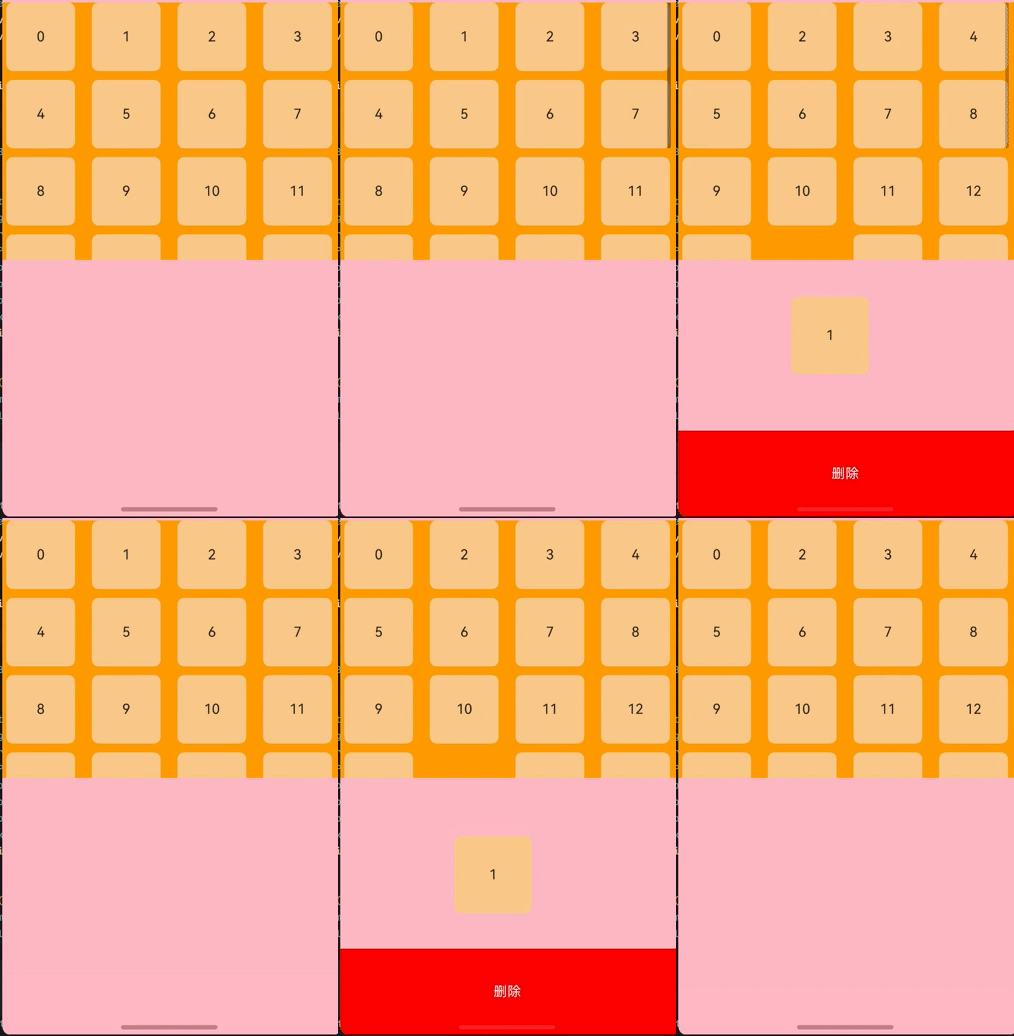
我们需要注意的是:当删除区域位于 Grid 组件范围之外的情况下,我们只能通过onItemDrop回调来判断结束拖拽位置的坐标,因为onItemDragMove方法在GridItem拖拽出Grid区域之后就不再回调了。
实现起来也挺简单的
- 计算
删除组件的坐标
- 在
onItemDrop中判断结束拖拽的时候,是否在删除组件的范围内,在的话就删除数据。
1
2
3
4
5
6
7
8
9
| @State data: number[] = [0, 1, 2, 3, 4, 5, 6, 7, 8, 9, 10, 11, 12, 13, 14, 15, 16, 17, 18, 19, 20]
private deleteViewHeight: number = 100
@State deleteViewOffset: number = this.deleteViewHeight
@State screenHeight: number = 0
@State deleteViewRawPositionY: number = 0
@State deleteViewTop: number = 0
@State statusBarHeight: number = 0
@State bottomNavBar: number = 0
|
计算我们需要的数据
1
2
3
4
5
6
7
8
9
10
11
12
13
| aboutToAppear(): void {
this.screenHeight = this.getUIContext().px2vp(display.getDefaultDisplaySync().height)
console.error(`DraggedGridPage:screenHeight -> ${this.screenHeight}`)
window.getLastWindow(this.getUIContext().getHostContext()).then((win) => {
this.bottomNavBar = this.getUIContext().px2vp(win.getWindowAvoidArea(window.AvoidAreaType.TYPE_NAVIGATION_INDICATOR).bottomRect.height)
console.error(`DraggedGridPage bottomNavBar-> ${this.bottomNavBar}`)
this.statusBarHeight =
this.getUIContext().px2vp(win.getWindowAvoidArea(window.AvoidAreaType.TYPE_SYSTEM).topRect.height)
console.error(`DraggedGridPage:statusBarHeight-> ${this.getUIContext().px2vp(this.statusBarHeight)}`)
this.deleteViewTop = this.screenHeight - this.statusBarHeight - this.deleteViewHeight
console.error(`DraggedGridPage:deleteViewTop-> ${this.deleteViewTop}`)
})
}
|
布局逻辑
1
2
3
4
5
6
7
8
9
10
11
12
13
14
15
16
17
18
19
20
21
22
23
24
25
26
27
28
29
30
31
32
33
34
35
36
37
38
39
40
41
42
43
44
45
46
47
48
49
50
51
52
53
54
55
| build() {
Column() {
Blank().height(200).width(0)
Grid(this.scroller) {}
.onItemDragStart((event: ItemDragInfo, itemIndex: number) => {
this.text = this.data[itemIndex].toString();
this.getUIContext().animateTo({
duration: 1000,
curve: curves.interpolatingSpring(0, 1, 400, 38)
}, () => {
this.deleteViewOffset = 0
})
return this.pixelMapBuilder();
})
.onItemDrop((event: ItemDragInfo, itemIndex: number, insertIndex: number,
isSuccess: boolean) => {
let top = this.deleteViewTop + 80
console.error(`onItemDrop: isSuccess->${isSuccess} y->${event.y} top-> ${top}`)
if (isSuccess) {
let tmp = this.data.splice(itemIndex, 1);
this.data.splice(insertIndex, 0, tmp[0]);
} else {
if (event.y > top) {
console.error(`item 进入删除区域,删除第 ${itemIndex} 个`)
this.data.splice(itemIndex, 1)
console.error(`删除后的数据 ${JSON.stringify(this.data)}`)
} else {
console.error(`item没有进入删除区域`)
}
}
this.getUIContext().animateTo({
duration: 1000,
curve: curves.interpolatingSpring(0, 1, 400, 38)
}, () => {
this.deleteViewOffset = this.deleteViewHeight
})
})
Text('删除')
.fontColor(Color.White)
.backgroundColor(Color.Red)
.width('100%')
.height(this.deleteViewHeight)
.textAlign(TextAlign.Center)
.position({ bottom: -this.bottomNavBar - this.deleteViewOffset })
.onAreaChange((oldValue, newValue) => {
this.deleteViewRawPositionY = newValue.position.y as number
})
}
.width('100%')
.height('100%')
.backgroundColor(Color.Pink)
.expandSafeArea([SafeAreaType.SYSTEM], [SafeAreaEdge.BOTTOM])
}
|
这样我们就实现了丐版的微信小程序删除效果。
如果想要完全复制:比如在拖拽进入删除组件时有个震动效果,可以参考示例16(实现GridItem自定义拖拽)
代码
github:https://github.com/huangyuanlove/HelloArkUI/tree/main/entry/src/main/ets/pages/playground/drag
gitcode:https://gitcode.com/huangyuan_xuan/HelloArkUI/tree/main/entry/src/main/ets/pages/playground/drag